Home Screen Overview
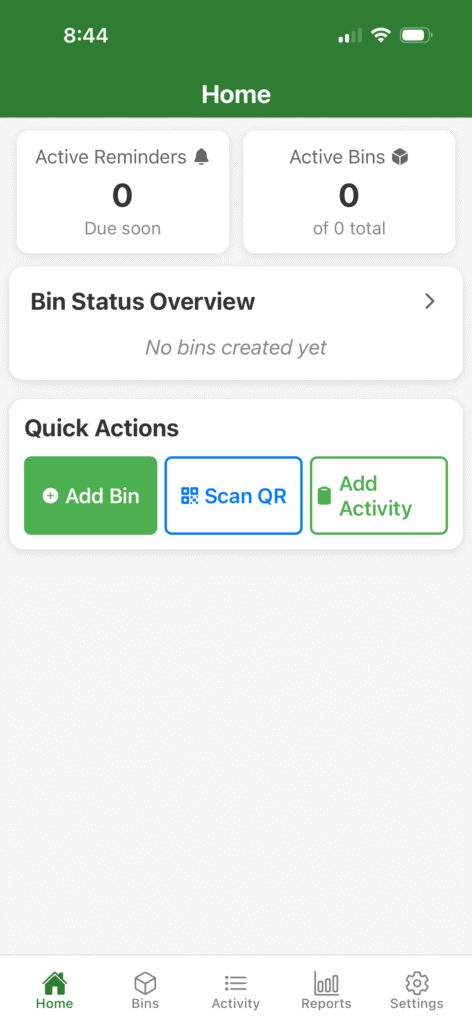
When you open WiseWorm, you’ll arrive on the Home tab. This screen gives you a quick summary of your worm farm.
What You’ll See:
- Active Reminders – Shows how many reminders are due soon
- Active Bins – Displays how many worm bins you currently have
- Bin Status Overview – Opens a detailed list of all your bins and their condition
- Quick Actions – Lets you instantly add bins, scan QR codes, or log activity
This screen will update automatically as you create bins and add activity.
At the bottom of the app, you’ll find five tabs:
| Tab | Purpose |
|---|---|
| Home | Dashboard summary + quick actions |
| Bins | List of all bins and their details |
| Activity | Full history of all logged actions |
| Reports | Charts and insights |
| Settings | Preferences, reminders, and support |
Adding your first bin
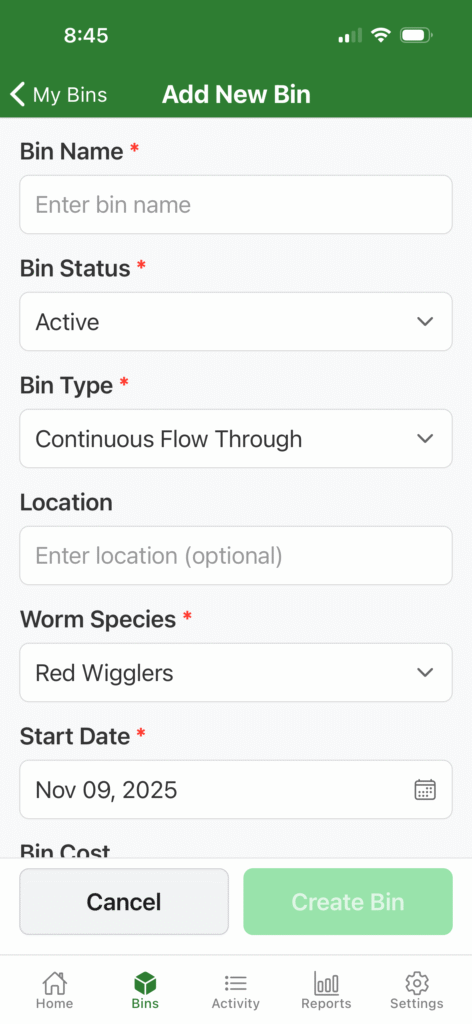
To start using WiseWorm, you need to create at least one bin.
📌 Steps:
- On the Home screen, tap Add Bin
- Enter your bin name (e.g., “Red Wigglers – Indoor Bin”)
- Add details like bin type, start date, bedding, and initial conditions
- Save the bin
Your bin will now appear in:
Any dropdown menu when logging activity
The Bin Status Overview
The Bins tab
Logging Activities
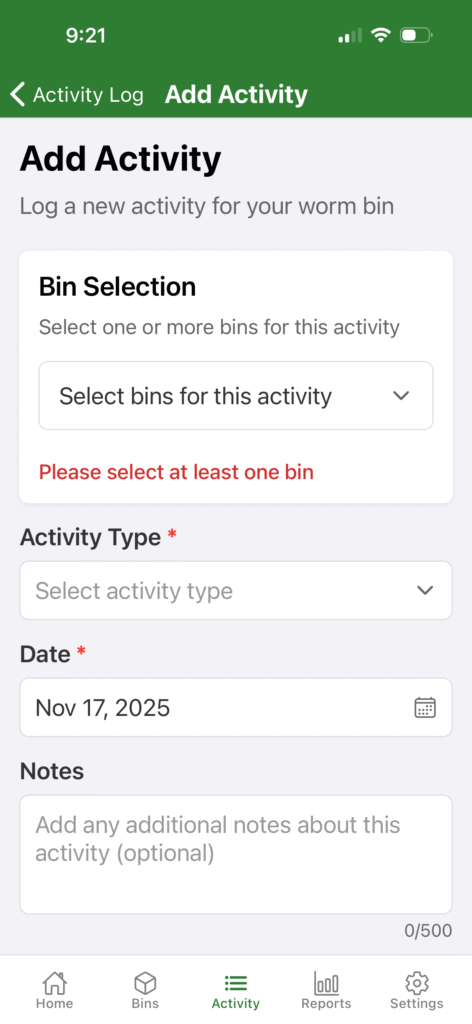
Activity entries help you track feeding, moisture, harvests, and general bin health.
📌 Steps:
- Tap Add Activity from the Home screen
- Select the bin you want to update
- Choose the type of activity:
- Feeding
- Ph check
- Temperature check
- Bedding added
- Harvest
- General note
- Enter any details or notes
- Save the activity
All logged activities appear in the Activity tab and inside each bin’s detail page.
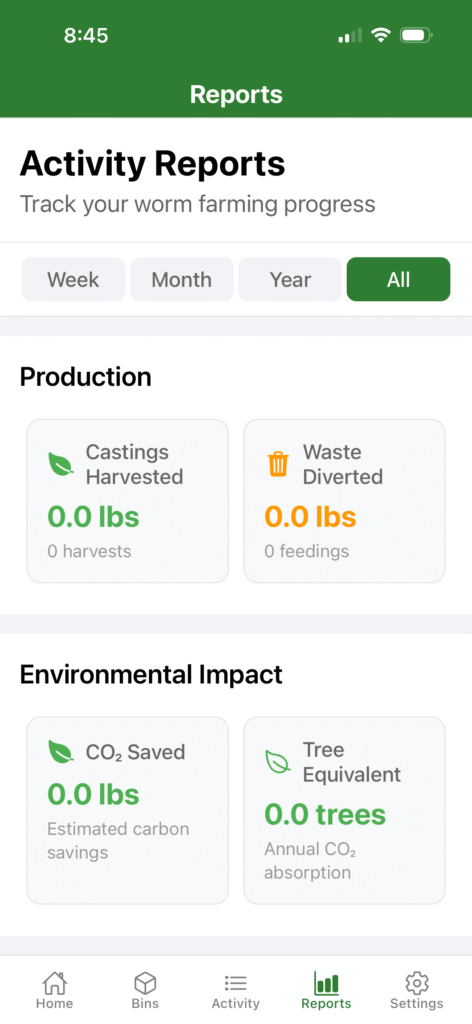
Viewing Reports
WiseWorm includes helpful visual reports to identify trends and bin health over time.
📌 Steps:
- Tap the Reports tab
- Choose from:
- Feeding history
- Moisture trends
- Temperature patterns
- Harvest log
- Filter by bin or date range
Reports help you understand what’s working—and what needs attention.
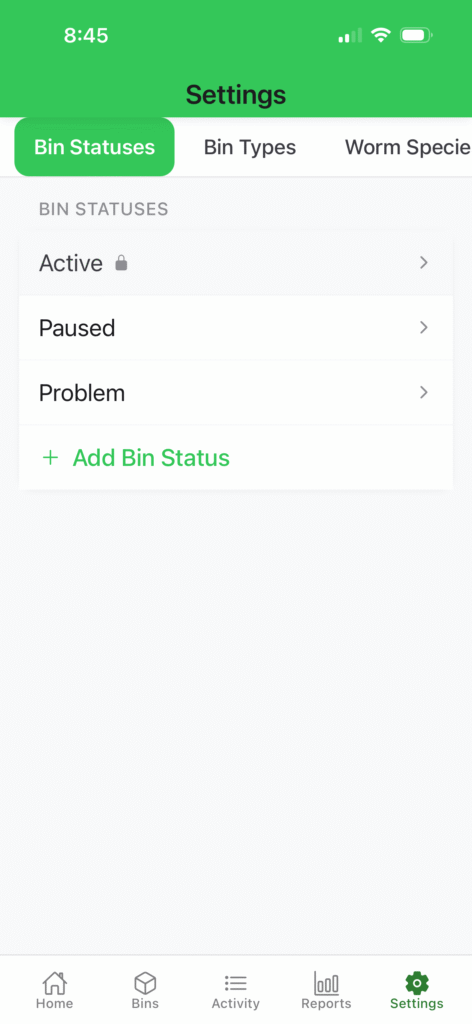
Settings
In the Settings tab, you can adjust:
- Bin Statuses
- Bin Types
- Worm Species
- Activites
- Measurements